

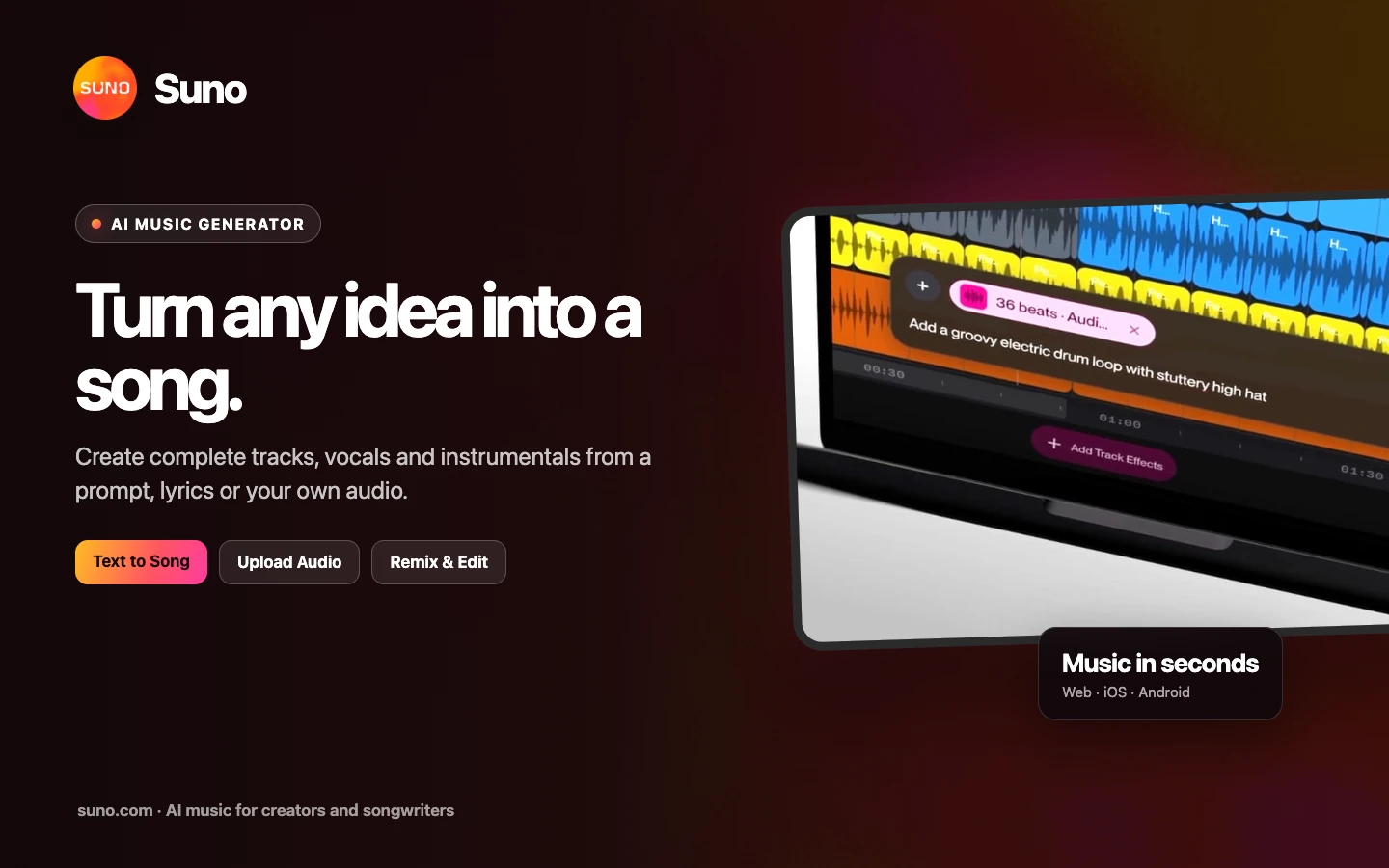
Suno is an AI music creation platform that turns a written idea, lyrics or uploaded audio into complete songs with vocals and instrumentation. It is designed for listeners experimenting with music, independent creators, songwriters, video makers and production teams. Suno works in a web browser and through official iOS and Android apps, while its higher plans add advanced editing and Suno Studio workflows.
What is Suno?
Suno combines generative music models with a guided song workflow. In Simple mode, a user describes the subject, mood or genre and lets Suno develop the song. Custom mode provides more control over lyrics, instrumental output, style instructions, title and advanced options. The platform can also extend an existing result, create a cover, adjust speed, replace sections and use authorized uploaded audio as the start of a new composition.
The current plan table separates model access and production controls. The Free plan uses the best free model, currently listed as v6-mini, while paid plans unlock advanced v6 and v6-wild models. Premier and Platinum add Suno Studio, a production workspace with stem-based editing, MIDI, effects, automation and plugin tools. Model names and plan features can change, so the live pricing and creation pages remain the final reference.
Key features and best use cases
- Text-to-song generation: describe a style, story, mood or musical direction and generate a complete track. This is useful for concept demos, social videos, game prototypes, podcast themes and creative experiments.
- Custom lyrics and instrumental music: enter original lyrics, ask Suno to help draft lyrics, or enable Instrumental when no vocals are needed. Style instructions can guide genre, tempo, instrumentation and vocal character.
- Audio upload and remix tools: upload material you have the right to use, then extend, cover or reshape it. The current pricing table lists uploads up to 8 minutes on Free and up to 30 minutes on paid plans.
- Editing, stems and consistent voices: paid plans add basic and advanced editing, stem separation, Voices, custom models, and tools that add vocals to an instrumental or instrumentation to an a cappella recording.
- Suno Studio: Premier and Platinum include a more hands-on workspace for arranging stems, using MIDI, applying effects and automation, and building longer production workflows.
How to create a song with Suno
1. Open Create and choose a workflow
Sign in to Suno and open Create. Use Simple mode for a fast prompt-to-song workflow, or switch to Custom when you want to control lyrics, style, title and instrumental settings. Only upload audio or lyrics that you own or are authorized to use.
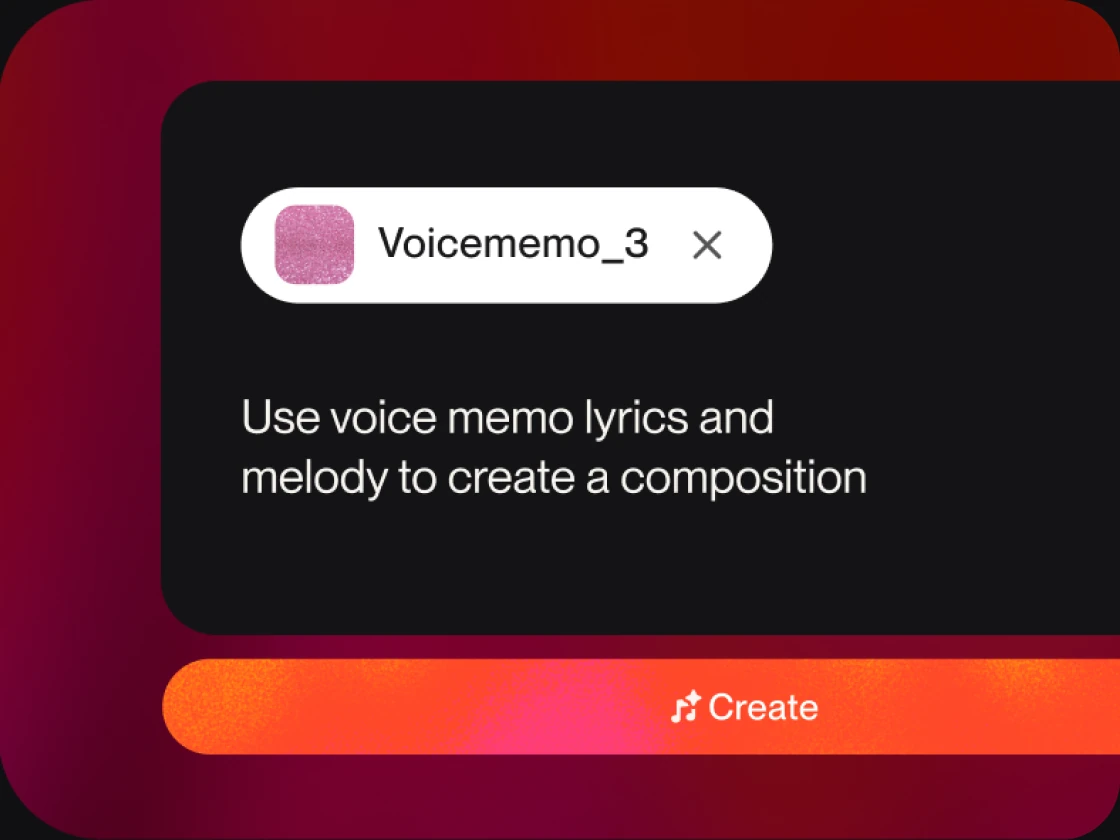
Official Suno example: start with a text prompt or add a voice memo, melody or audio source that you have permission to use.
2. Describe the song or enter lyrics
Write a specific description covering genre, mood, instruments, tempo, vocal type and intended use. In Custom mode, paste original lyrics or use the lyric assistant, then enable Instrumental if you want music without vocals. Avoid requesting a living artist by name or adding protected lyrics and trademarks.
3. Select model and advanced options
Choose an available model and review any plan-dependent controls. Paid users may have Voices, custom models, audio upload, advanced editing and other production options. A shorter, focused prompt is usually easier to evaluate than several conflicting directions.
4. Generate and compare results
Create the song and listen through each result before continuing. Check lyric accuracy, pronunciation, musical structure, transitions, vocal artifacts and whether the output matches the intended mood. Regenerate or revise the prompt when a section needs a different direction.
5. Edit, extend and export
Use Remix/Edit tools such as Extend, Cover, Adjust Speed, Crop or Replace Section where available. Paid plans provide monthly download allowances and commercial rights for songs created while the subscription is active. Keep project records showing when and under which plan a commercially used song was generated.
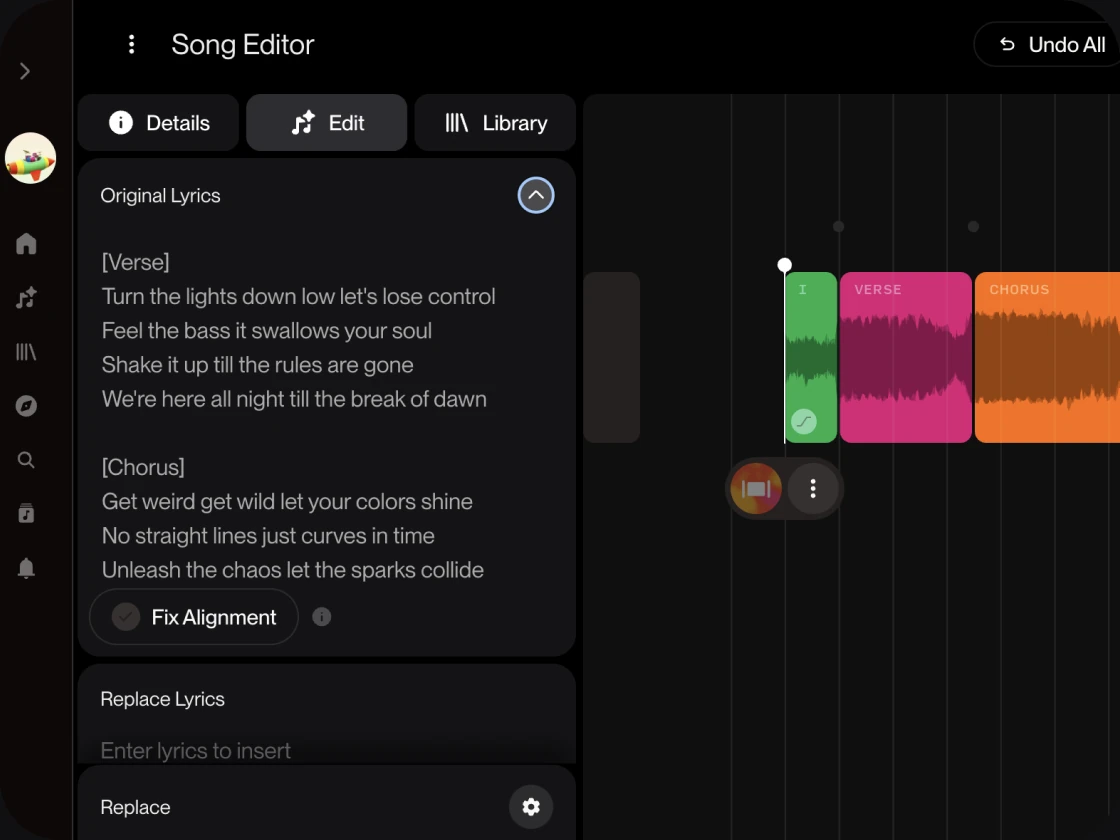
Use Song Editor to review lyrics and sections, then replace, extend or regenerate selected parts when needed.
Pricing and supported platforms
Suno uses a freemium model. On 18 November 2026, the official pricing page listed Free at $0 with 50 song credits per day, standard features, uploads up to 8 minutes and no commercial rights. Pro was displayed at $10 per month, or $8 per month billed as $96 per year, with 2,500 monthly song credits, 20 monthly song downloads, advanced models, priority generation and commercial use rights. Premier was $30 monthly or $24 per month billed annually and included 10,000 credits, 60 downloads and Suno Studio. A higher Platinum plan was also shown.
Subscription credits do not carry over from one billing period to another. Purchased top-up credits do not expire but require an active subscription to use. The verified delivery platforms are Web, iOS and Android; features can differ between the browser, mobile apps and Suno Studio.
Official Suno beginner tutorial
This official Suno video starts with basic prompts and then explains song generation, advanced controls and editing features for new and returning creators.
Watch the official Suno beginner tutorial on YouTube
Important limitations and commercial rights
- Songs made on the Free plan are for personal, non-commercial use. Suno states that subscribing later does not automatically grant retroactive commercial rights to those earlier songs.
- Songs made while an eligible paid subscription is active receive commercial use rights, but commercial permission does not guarantee copyright protection. Copyright eligibility depends on human authorship and local law.
- You must have rights to uploaded recordings, lyrics and other source material. A remix of another creator's song remains subject to the original creator's rights and may not be monetizable by the remixer.
- Prompts can be blocked for named public figures or artists, copyrighted or trademarked terms, defamatory material, excessive profanity and other restricted content.
- Generated vocals, lyrics, arrangements and transitions can contain errors or artifacts. Review the complete track before publication or distribution.
Frequently asked questions
Can Suno be used for free?
Yes. The current Free plan provides 50 song credits per day, but songs made on that plan are limited to personal, non-commercial use and the plan has no monthly download allowance.
What is the cheapest paid Suno plan?
Pro is the entry paid plan. It was listed at $10 per month, or $8 per month when billed annually at $96 per year, on 18 November 2026.
Can I monetize songs made with Suno?
Songs created while an eligible paid subscription is active receive commercial use rights. Free-plan songs cannot be monetized, and upgrading later does not normally change the rights of songs created earlier.
Do I own the copyright to an AI-generated Suno song?
Commercial rights and copyright are different. Suno can grant commercial use rights, but copyright protection depends on human contribution and the law in the relevant country. Original lyrics written by the user remain the user's lyrics.
Does Suno have mobile apps?
Yes. Suno provides official apps for iOS and Android in addition to its web platform, although some creation and editing features can vary by platform and plan.