
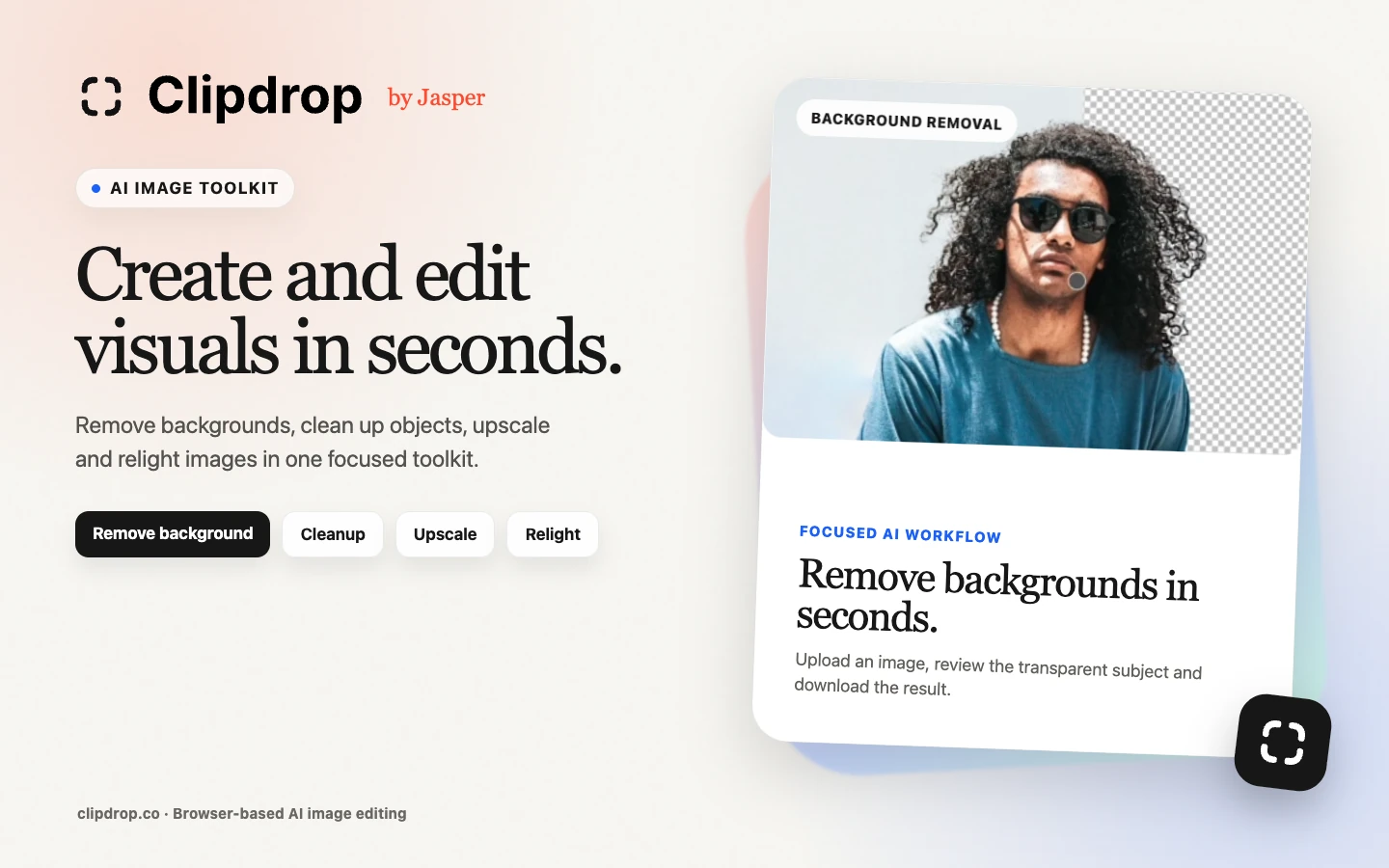
Clipdrop is a browser-based AI image creation and editing suite for creators, marketers, photographers, e-commerce teams, and other users who need to produce or improve visuals quickly. Now part of Jasper, it brings several focused image tools into one web service, including background removal, object cleanup, text removal, image upscaling, relighting, uncropping, background replacement, text-to-image generation, and social-media resizing.
What is Clipdrop?
Instead of presenting a conventional layer-based photo editor, Clipdrop organizes its workflow around individual AI tasks. A user selects the tool that matches the desired result, provides an image or a text prompt where required, reviews the generated output, and downloads the result. This focused approach is useful for product photography, social posts, real-estate images, portraits, creative mockups, and everyday image cleanup.
Key features and use cases
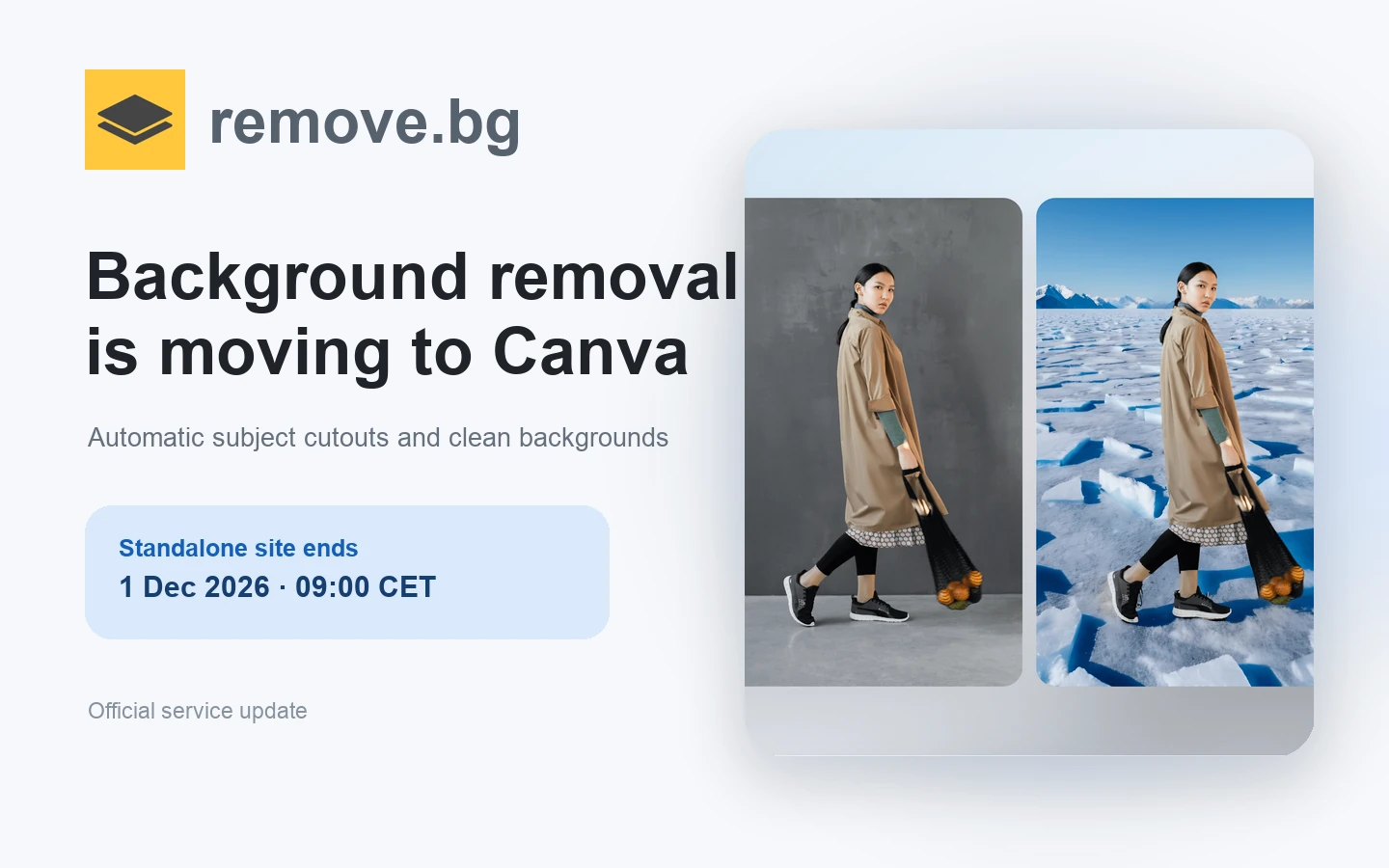
Remove Background: separates the main subject from its background for product images, portraits, drawings, and other visual assets.
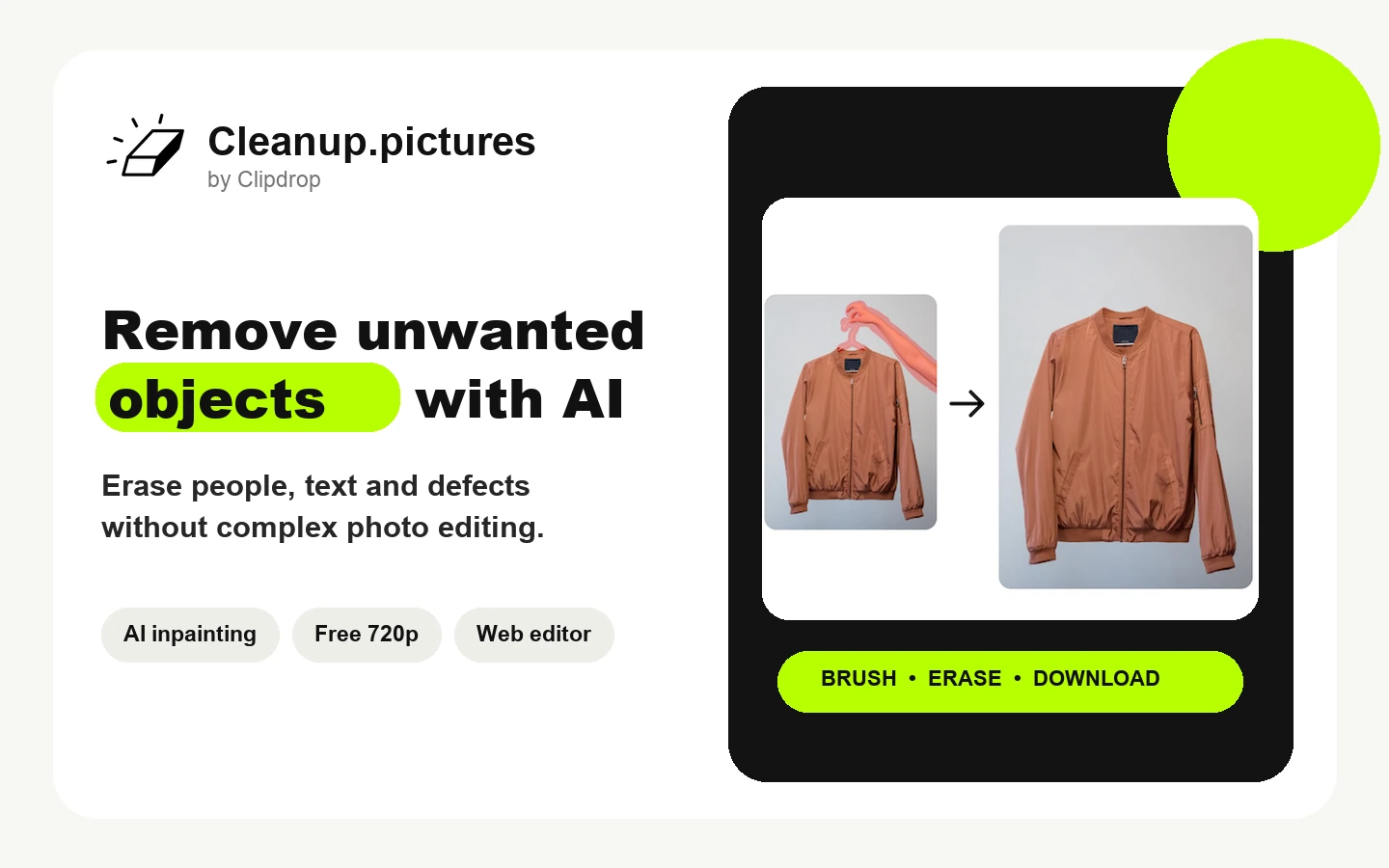
Cleanup and Text Remover: removes selected objects, people, defects, or detected text while reconstructing the surrounding area.
Image Upscaler: enlarges images while reducing noise and recovering detail; the public tool describes 2× or 4× enlargement, while the Pro plan lists higher-resolution processing up to 16×.
Relight: adds and adjusts virtual light sources after a photo has been taken.
Uncrop and Replace Background: extends an image beyond its original frame or places a subject in a newly generated setting.
Text to Image and Universal Resizer: creates images from prompts and adapts finished visuals to common social-media sizes.
How to use Clipdrop
1. Choose the right AI image tool
Open Clipdrop's Tools page and select the task that matches your goal, such as Remove Background, Cleanup, Image Upscaler, Relight, or Text to Image.
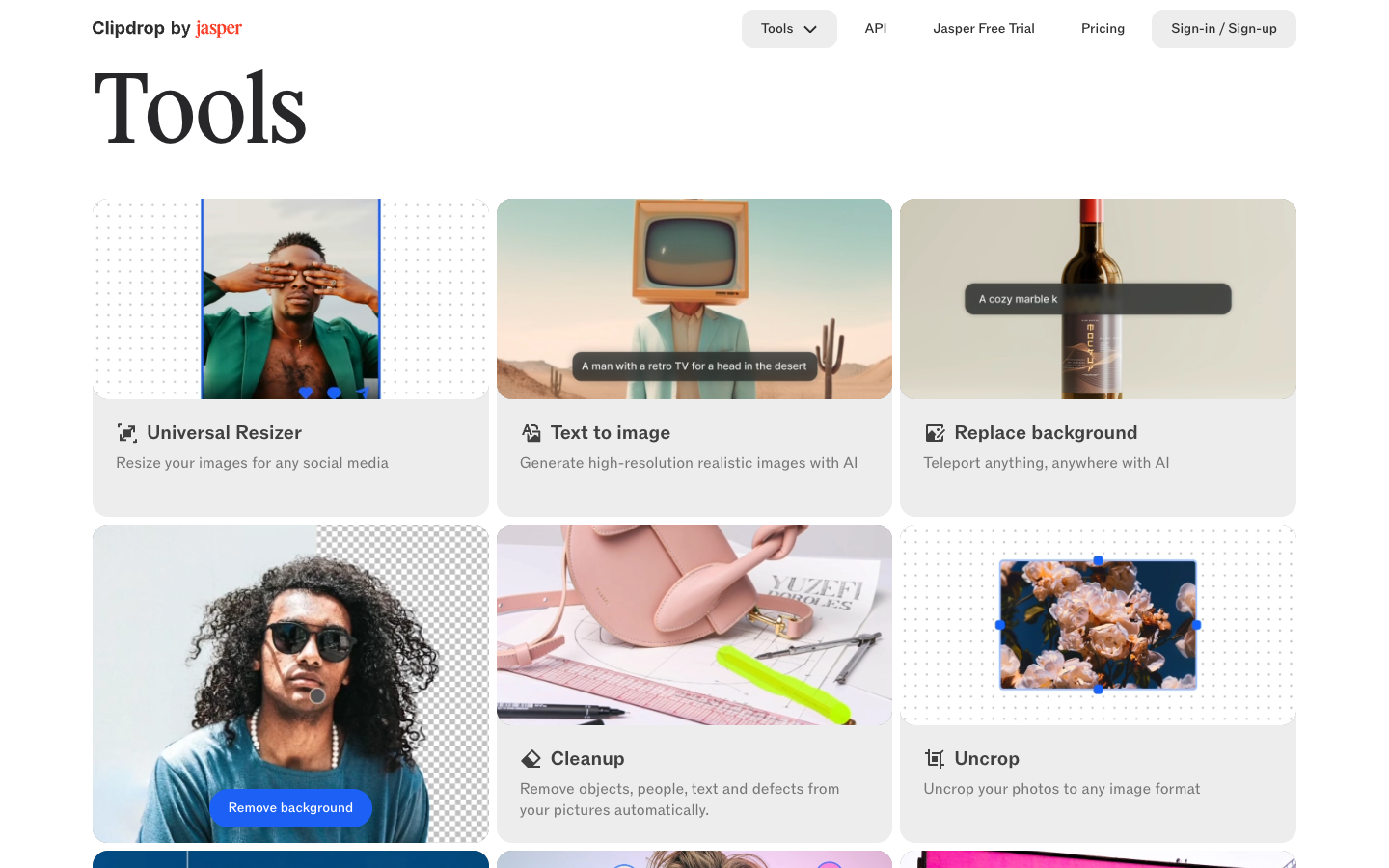
Clipdrop groups its AI image tools by task, making it easier to start with the correct workflow.
2. Open the tool workspace
The selected tool opens a dedicated workspace. The Remove Background page, for example, provides an upload area and public sample images so you can understand the expected input before processing your own file.
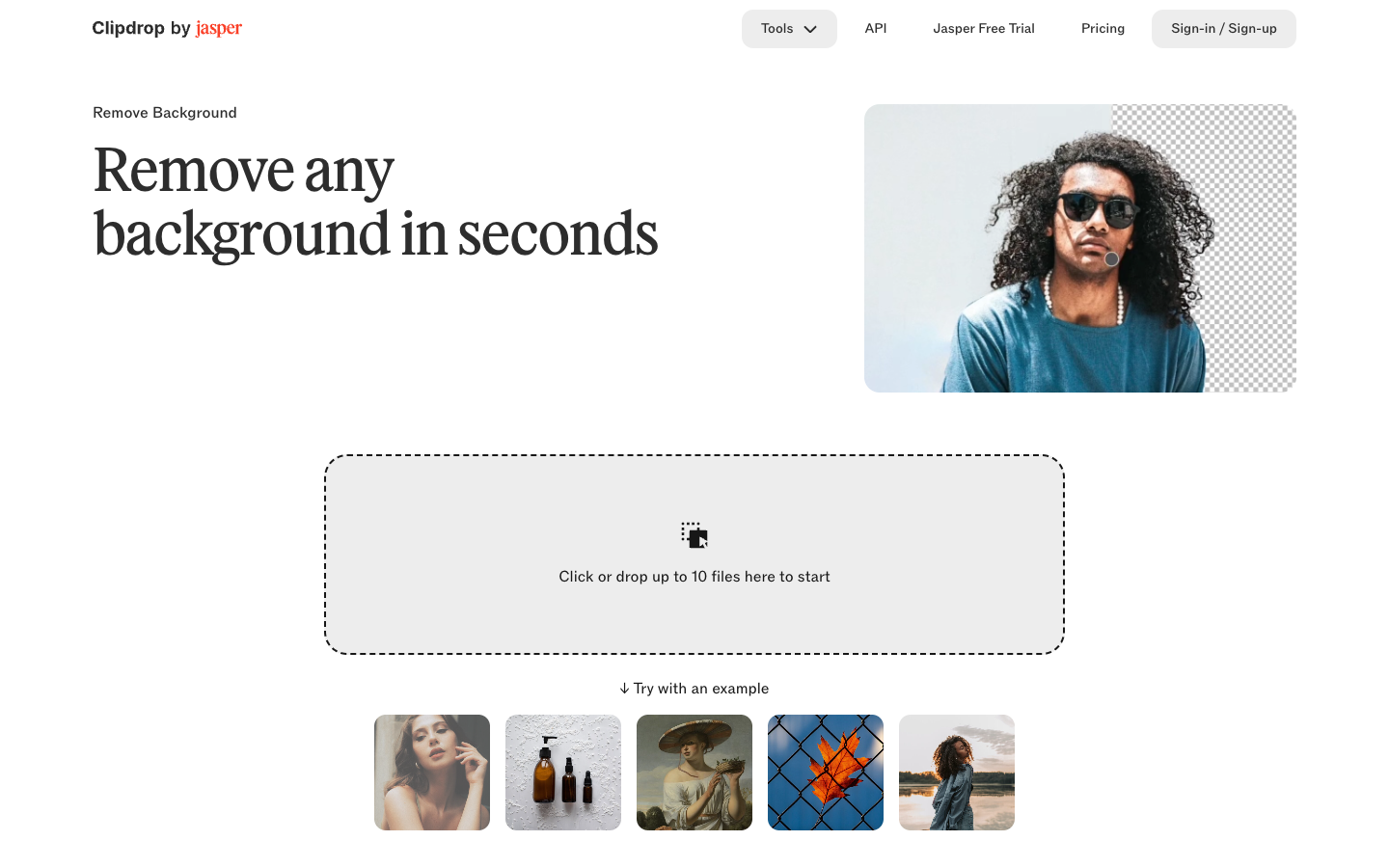
The Remove Background workspace provides an upload area and public examples.
3. Add an image or prompt
For editing tools, choose an image you are authorized to use. For Text to Image, enter a clear prompt describing the subject, style, composition, and background.
4. Review and download
Check subject edges, reconstructed areas, lighting, and output resolution. Adjust the available controls, then download the result. Review the current pricing page if you need HD export or higher daily limits.
Video tutorial
This Spanish-language tutorial by Xavier Mitjana demonstrates Clipdrop workflows for removing objects, replacing backgrounds, and relighting images. It was published in March 2023, so some interface details may differ from the current version.
Watch the Clipdrop tutorial on YouTube
Pricing and platform
Clipdrop uses a freemium model. Its official pricing page lists a Free tier with daily quotas for several tools, including 20 uses per 24 hours for Background Removal, 2× Image Upscaler, Cleanup, and Relight, plus 50 uses per 24 hours for Text Remover. A Pro tier adds higher-resolution processing and larger daily allowances, while API access is usage-based. When checked on 15 November 2026, the public pricing page did not expose a reliable numeric Pro price, so the current amount should be confirmed directly on the official checkout page. The verified delivery platform for this listing is Web.
Important limitations
Free quotas, export resolution, and available features differ by tool and can change.
The official Cleanup page states that free exports are limited to 720 pixels, while Pro supports high-resolution processing.
The Text Remover page says free processing is intended for images below 1024 pixels; larger files may be resized.
AI results depend on the source image, subject edges, lighting, and the complexity of the area being reconstructed. Review important commercial assets before use.
Users should review Clipdrop's current privacy and usage terms before uploading confidential or rights-restricted images.
Frequently asked questions
Is Clipdrop free?
Clipdrop has a Free tier with tool-specific daily limits. Pro is intended for higher-resolution results, larger allowances, and queue priority where listed.
Can Clipdrop remove backgrounds, objects, and text?
Yes. Clipdrop provides separate tools for background removal, selected-object cleanup, and automatic text removal.
Does Clipdrop work in a browser?
Yes. Its main image tools are available on the Clipdrop website. Native mobile-app availability should be confirmed through current official store links before claiming iOS or Android support.